
One workspace for your show.
Product brochurePrepare your LED layout, design animations and run the show on Windows. The mobile app adds remote access and project follow-up.
Inside the application.
Tap an image to enlarge it.
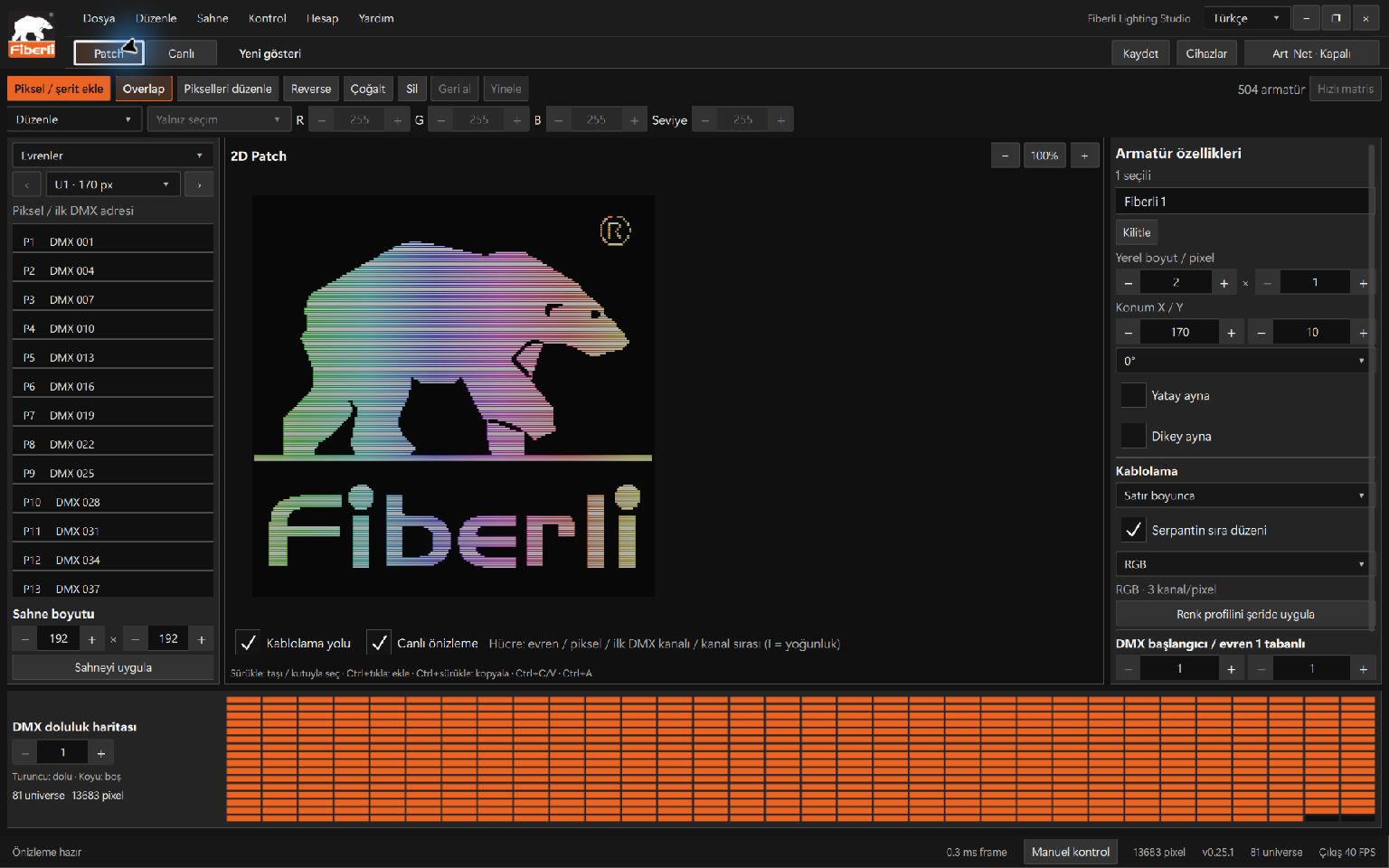
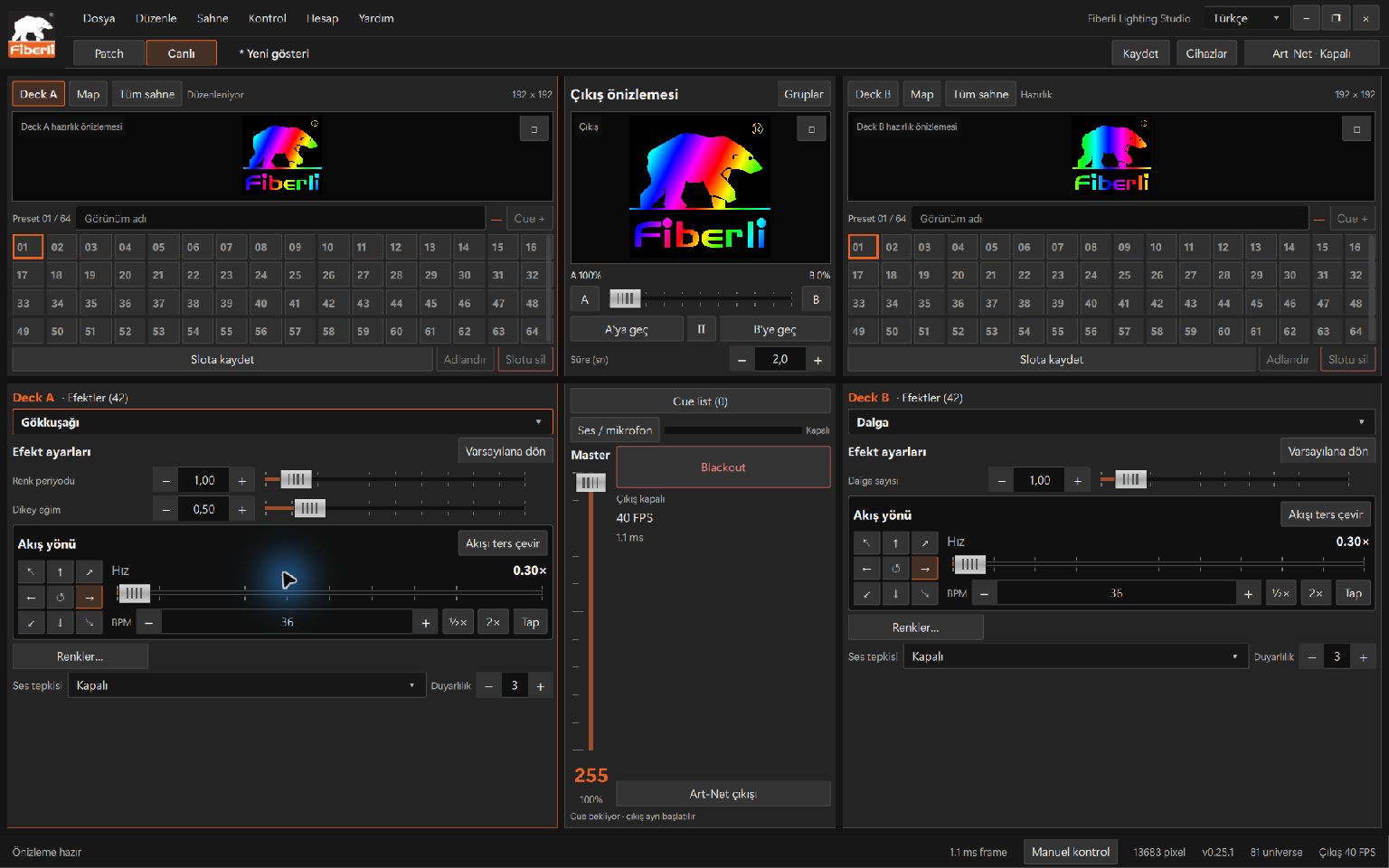
Build the layout for your project.
Place fixtures in a 2D scene. Use rotation, mirroring and serpentine wiring to describe your LED layout. Save pixel, channel and universe assignments in a .psl project.
Work with RGB, RGBW and custom channel profiles. Inspect addresses in the DMX occupancy view. Group pixel ranges to apply independent colours and effects within the same universe.
42 effects. Your own colours.
Choose rainbow, waves, scrolling text and other built-in effects. Edit palettes of 1–64 RGB colours, then shape the look with speed, direction, reverse flow and effect-specific controls.
Use image and video sources alongside effects. Combine looks with two effect layers per deck and prepare animations that respond to system audio on the computer. Video playback is silent.
Prepare, compare and transition.
Each A/B deck has an independent 64-slot preset bank. Preview both decks and the mixed output, then use the crossfader for manual, cut or timed transitions.
Sequence looks in a cue list and edit their duration and fade. Master controls overall brightness. Blackout keeps sending zero values; Stop output stops transmitting data.
Put your show on a timeline.
Add preset slots to a timeline. Set segment durations and fades, change their order and loop playback. You can attach an audio file to the timeline.
Create one-time, daily, weekly, monthly or yearly schedule rules. Schedule timeline/cue playback, stop, Master and Blackout actions. The application must remain open; schedules do not enable physical output by themselves.
See the light on a building photo.
Load a facade photo, draw LED lines and link them to pixel ranges in your patch fixtures. Preview the result after A/B mixing, Master and Blackout on the photo.
Move lines, reverse their direction and undo edits. Transfer the photo together with the project mappings. This view supports visual preparation; it is not a photometric calculation or a guarantee of on-site brightness.
Manage your Art-Net installation.
Use Device Manager to manage nodes, physical ports, destination IPs, universes and Ethernet adapters. Check addresses with pixel and manual DMX tests. Choose 10–40 FPS per device.
The computer is the show engine. It sends data over Ethernet to Art-Net nodes, which drive the LED fixtures. Plan unicast routes and network bandwidth for larger projects, then validate the actual hardware.
Your remote on Android, iPhone and iPad.
Connect over a trusted local network or pair over the internet with a single-use code generated on the computer. Select animations/presets, pause or resume playback and adjust speed. Use the internet workspace for pixel testing and project, image or video transfer.
Inspect moving samples of the 42 effects on your phone. The phone preview is a sample matrix rather than a live view of final physical output. Live control requires the compatible Windows application; physical output is enabled on the desktop.
Follow requests for your lighting project.
Use a free mobile account to save projects, optional buildings/zones and products/control groups. Open support requests with selected photos or videos, then follow replies and notifications.
Browse Fiberli catalogue links and request animation, lighting design or product/service quotes. These account features need no paired desktop. Quotes are accepted separately; no payment is collected in the app. Mobile feature availability depends on the version released in each store.
Try it first. Choose your capacity.
Prepare projects without physical output in free Studio Preview. Paid licences cover 2, 4, 8, 16, 32, 64, 128, 256, 512, 1,024, 2,048 or 4,096 active universes. All paid tiers support up to 40 FPS.
The capacity limit is not a performance guarantee for every project. Assess the computer, network adapters, nodes and effect/media workload together. Choose the licence and network scope for your installation.
Hardware and system.
Windows system requirements
The minimum and recommended profiles are test candidates. Performance on these configurations has yet to be verified.
| Component | Minimum · Studio Preview | Recommended · Live use |
|---|---|---|
| Operating system | Windows 11 64-bit | Windows 11 64-bit |
| Processor | Intel Core i3‑12100 or AMD Ryzen 3 5300G class | Intel Core i5‑12400 or AMD Ryzen 5 5600G class |
| RAM | 8 GB | 16 GB |
| Storage | SSD | SSD, NVMe for projects with video |
| Graphics | Integrated graphics | Integrated graphics with hardware decoding for video |
| Network | No physical output | Wired 1 GbE Ethernet |
| Use | Project editing and basic preview | Test target of 64 active universes, two effects and 40 newly rendered frames per second |
Large installations
The test reference system used an Intel Core i9‑13900H and 32 GB RAM. It rendered about 40 new frames per second at 64 universes in a short network loopback test.
Plan for 2.5 GbE or multiple network adapters at 4,096 universes and 40 FPS. Validate performance at this scale on site using the actual project and physical Art-Net nodes.
| Network and LEDs | Wired Ethernet, Art-Net-compatible nodes, suitable fixture power supplies and data cabling. LEDs do not connect directly to the computer. |
|---|---|
| Capacity | Up to 4,096 active universes, 2,097,152 DMX channels and 1,000,000 logical pixels. 10–40 FPS per device. |
| Mobile | Android, iPhone or iPad. Internet remote control requires a paired, online Windows computer. |
Start preparing your project.
Step-by-step training · Connections and hardware planning · Discuss your project