
Pixel and channel addressing
Map your pixel layout to the correct DMX channels.
Prerequisite: You need to know the fixture’s pixel count, colour order and wiring.
Ready-to-use example projects
Download the file. In Studio, use File → Open to open it. If you download the ZIP, extract it to a folder first. Requires Windows Studio 0.29.0 or later. No external media files are needed.
- Two groups across 170 pixels — download .psl
A1: the first 50 pixels are red and the remaining 120 are green. A2: the colours are reversed. A3: the entire scene is blue.
The example nodes are disabled and use loopback addresses. In the scheduling example, the master switch and all rules are disabled. Use Save As to keep your own experiments.
Step-by-step instructions
Open the layout using Scene > Patch editor. Select the fixture you want to edit, or create a new matrix or strip.
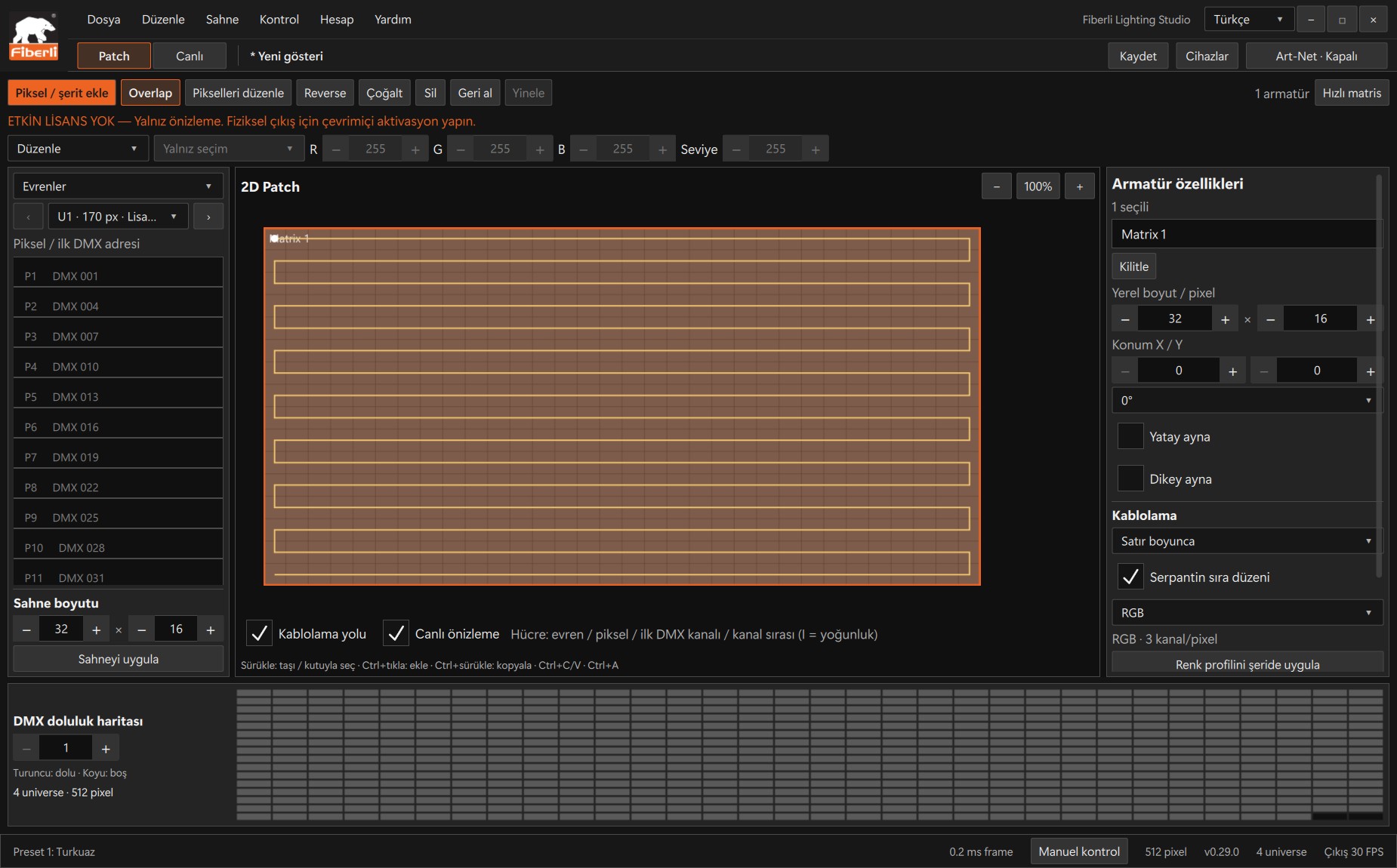
Patch workspace: fixture properties, pixel layout and DMX channel occupancy. Open the image to view it at full size. Enter the actual width, height and pixel count. Select the RGB/RGBW colour order required by your fixture.
Set the starting universe and channel. Check the DMX occupancy view for overlaps with other fixtures.
With standard RGB and a starting channel of 1, 170 pixels use 510 channels. With RGBW, 128 pixels use 512 channels. A pixel’s channels are not split across universe boundaries.
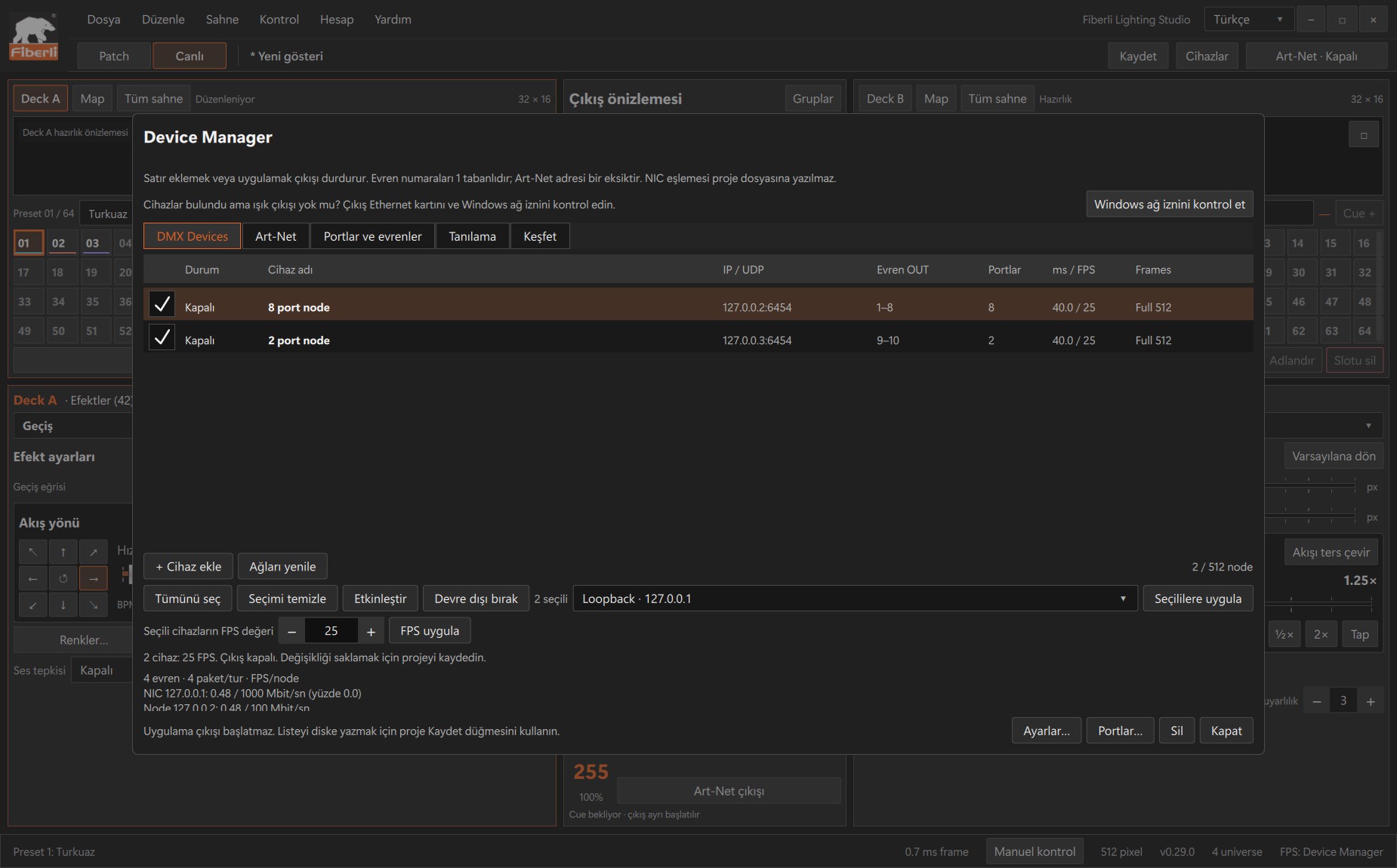
Device Manager: device rows, IP/universe details and bulk NIC/FPS controls. Open the image to view it at full size. In Device Manager, map the project universes in use to the node ports. The interface displays universe numbers starting at 1; the transmitted Art-Net address is one less. Save the project.
Expected result
The Patch summary and the universes assigned to the node ports follow the same plan.
Common mistakes and things to check
Pixel numbers, channel numbers and universe numbers are different. An incorrect colour order can make a red command appear as another colour.
These are screenshots of the actual application. Images are from Windows Studio 0.29.0; the Help screen is from 0.30.1. The screenshots show the Turkish interface. Physical output is disabled in the examples.