
Updating Studio
Install the new version and check your project.
Prerequisite: A backup of your project and media, and an internet connection for the download.
Step-by-step instructions
Save your current project and make a backup copy.
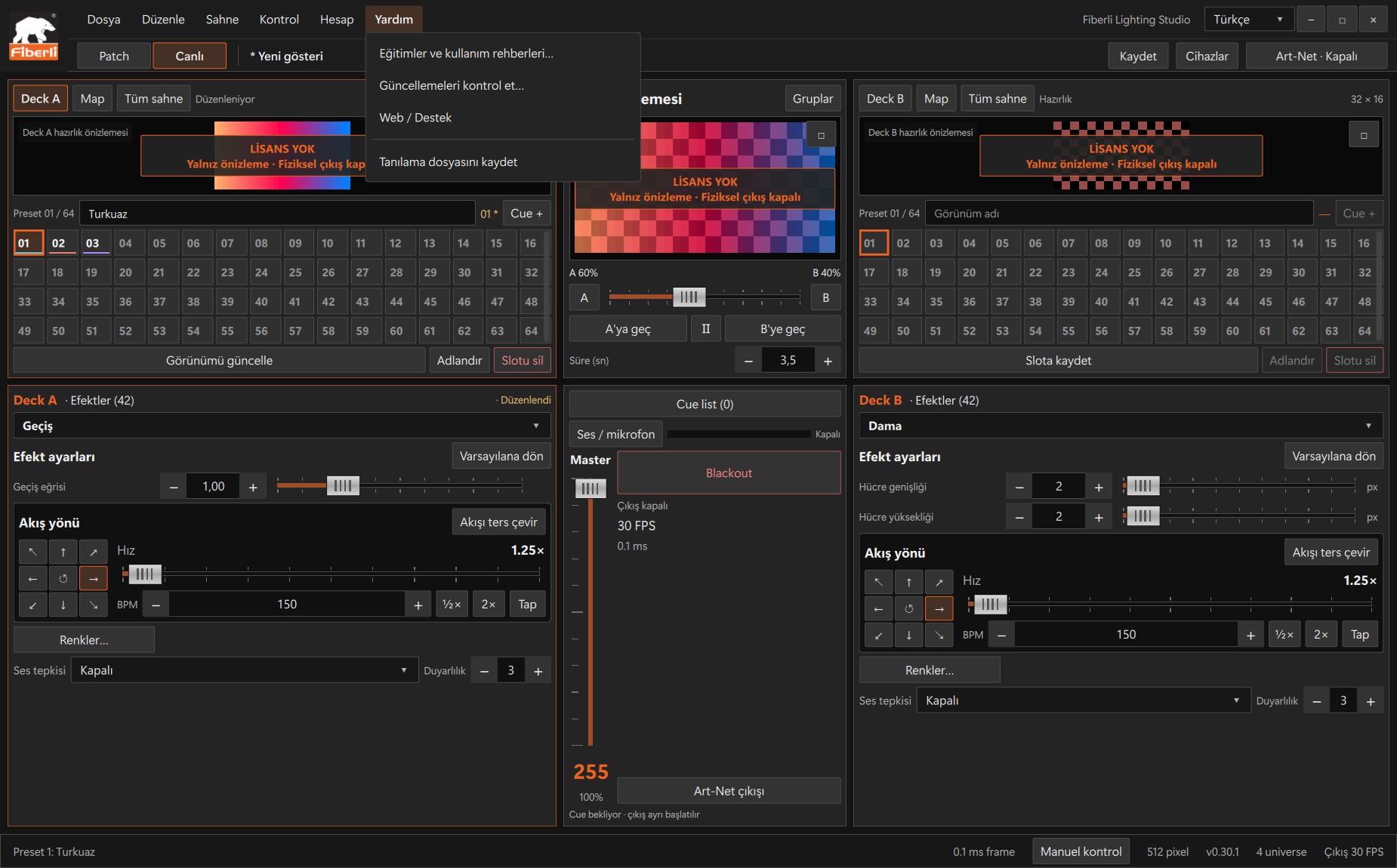
Help menu: training, updates and support links. Open the image to view it at full size. Open Help > Check for updates…. When a new version is available, review the changes using the Release notes link.
Use Update or Download to download the installer within Studio. After size and SHA-256 verification, choose Install. Alternatively, download the installer through the contact form on the website.
Complete the unsaved-project prompt when starting installation; cancelling prevents installation. If you downloaded from the website, save your project, close Studio and run the installer. Open Studio after installation.
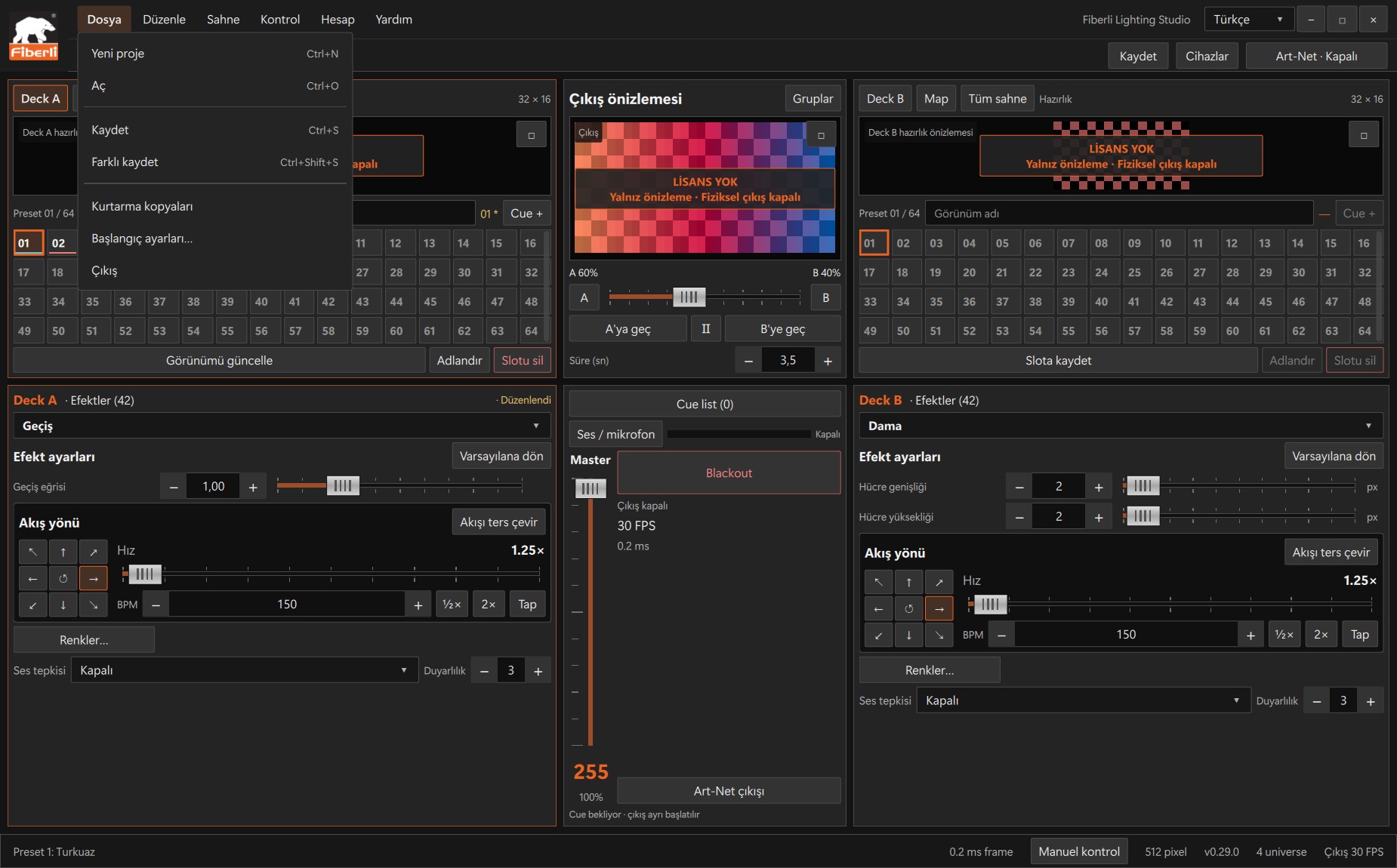
File menu: New, Open, Save, Save As and startup settings. Open the image to view it at full size. Check the version, licence, project, media and network settings. Keep the old project backup before saving with the new version.
Expected result
The updated Studio opens, and you can check the project preview.
Common mistakes and things to check
A newer project schema may not open in an older Studio version. Downloading the installer does not mean the update has been installed.
These are screenshots of the actual application. Images are from Windows Studio 0.29.0; the Help screen is from 0.30.1. The screenshots show the Turkish interface. Physical output is disabled in the examples.