
Backups and transferring projects
Move a project and its media files to another computer.
Prerequisite: Access to the saved project and source media folders.
Step-by-step instructions
Use File > Save As to save a dated copy of the project to a backup folder.
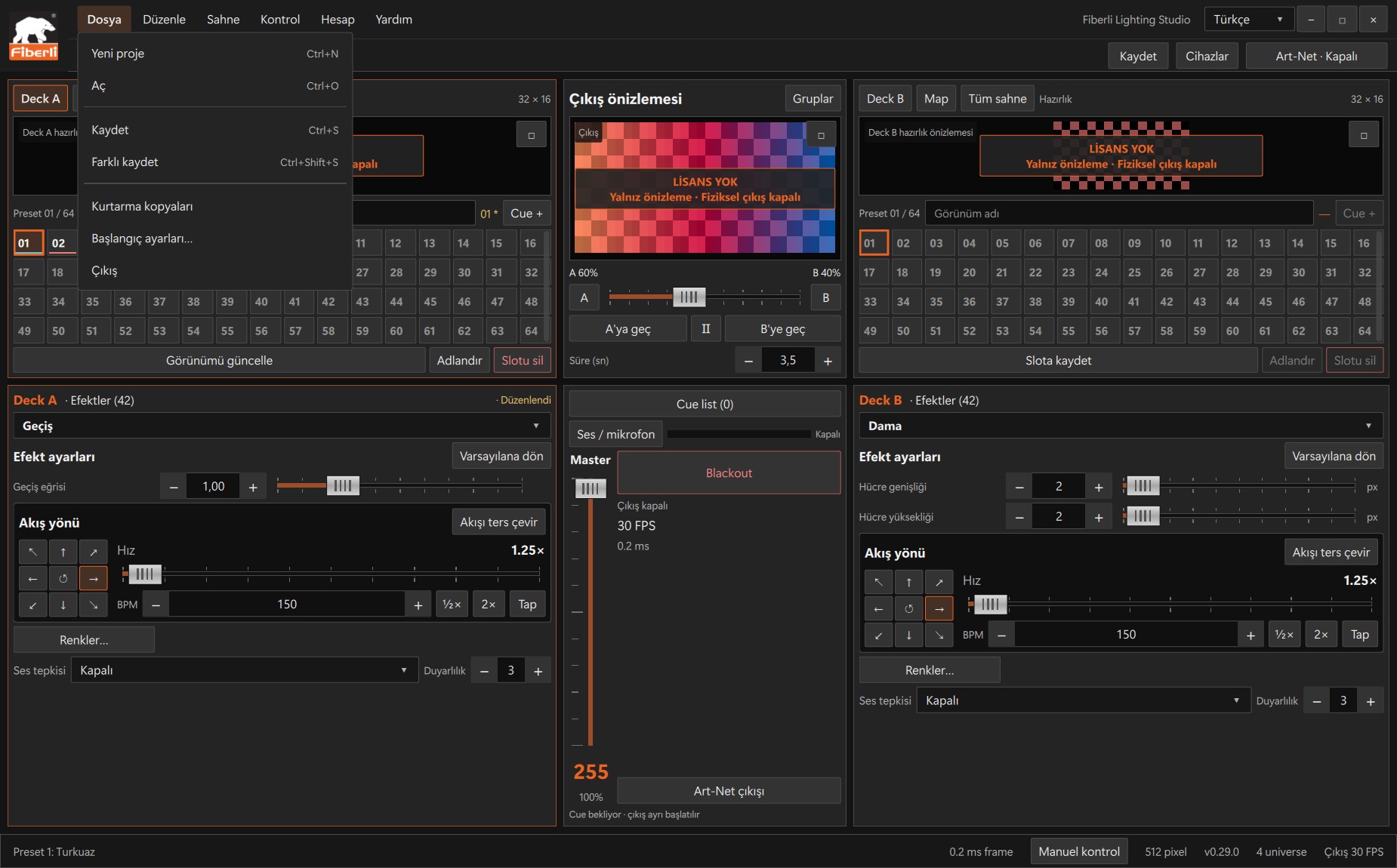
File menu: New, Open, Save, Save As and startup settings. Open the image to view it at full size. Back up the images, videos and timeline audio files in use too. Keep them in a folder structure close to the project.
Copy the project folder and media to the destination computer together. Install a compatible, up-to-date Studio version on that computer.
Open the project on the destination computer. If a file is missing, select the correct media file again. Check the slot and timeline previews.
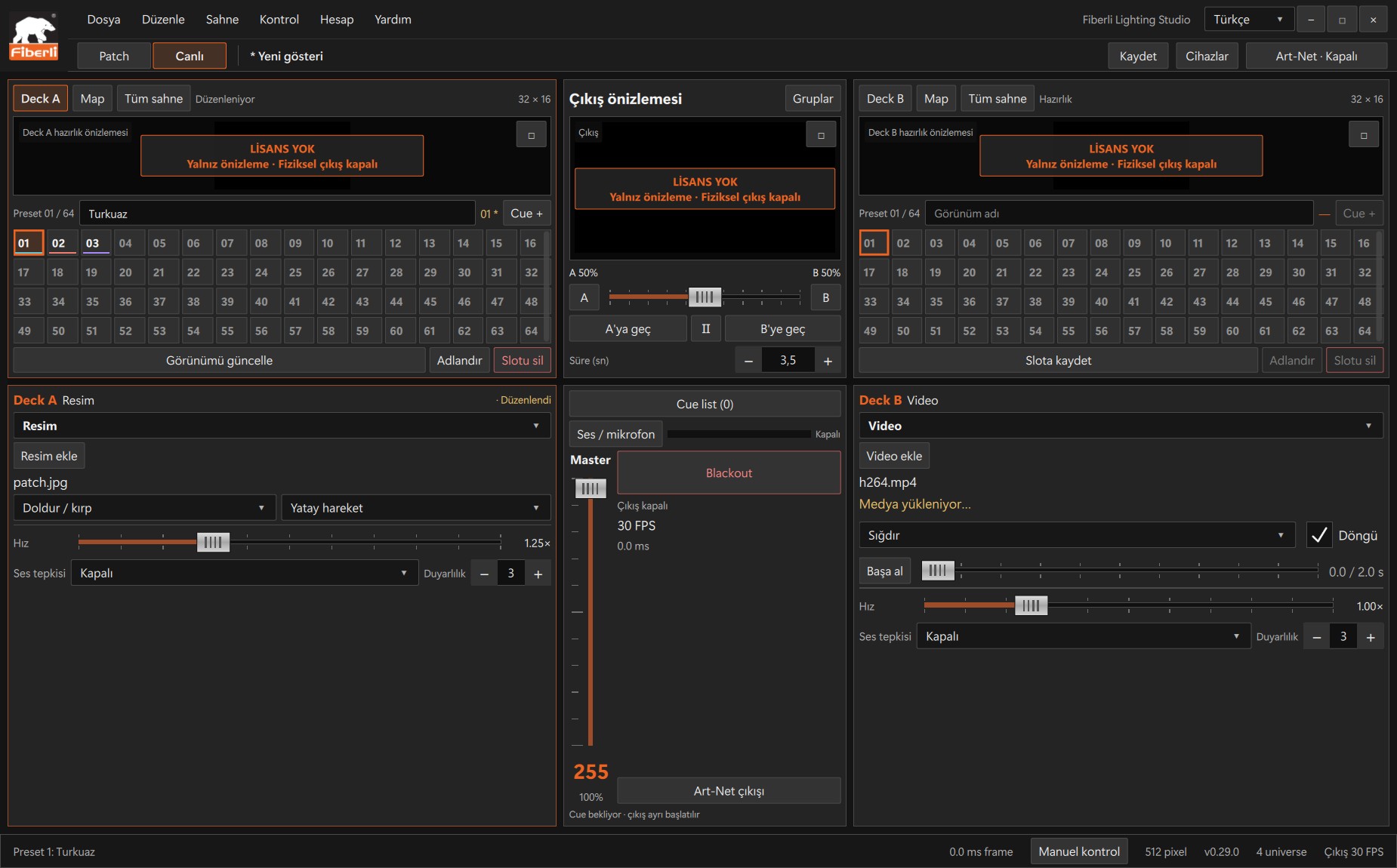
Example A/B decks using image and video sources. Open the image to view it at full size. Configure the destination computer’s Ethernet adapter, IP address and licence separately. Recheck device/universe mappings before starting physical output.
Expected result
The project and its media open correctly on the destination computer.
Common mistakes and things to check
The licence is tied to the computer. Network adapter bindings do not guarantee compatibility with different hardware; opening a project alone does not prepare the installation connection.
These are screenshots of the actual application. Images are from Windows Studio 0.29.0; the Help screen is from 0.30.1. The screenshots show the Turkish interface. Physical output is disabled in the examples.