
Mobile remote control
Connect the Android, iPhone or iPad app to your desktop show.
Prerequisite: The Google Play or App Store app, Windows Studio running and a network/account suitable for your connection method.
Step-by-step instructions
Install the app for your device using the Google Play or App Store link on the Download page. See the release notes for published changes on Android and iOS.
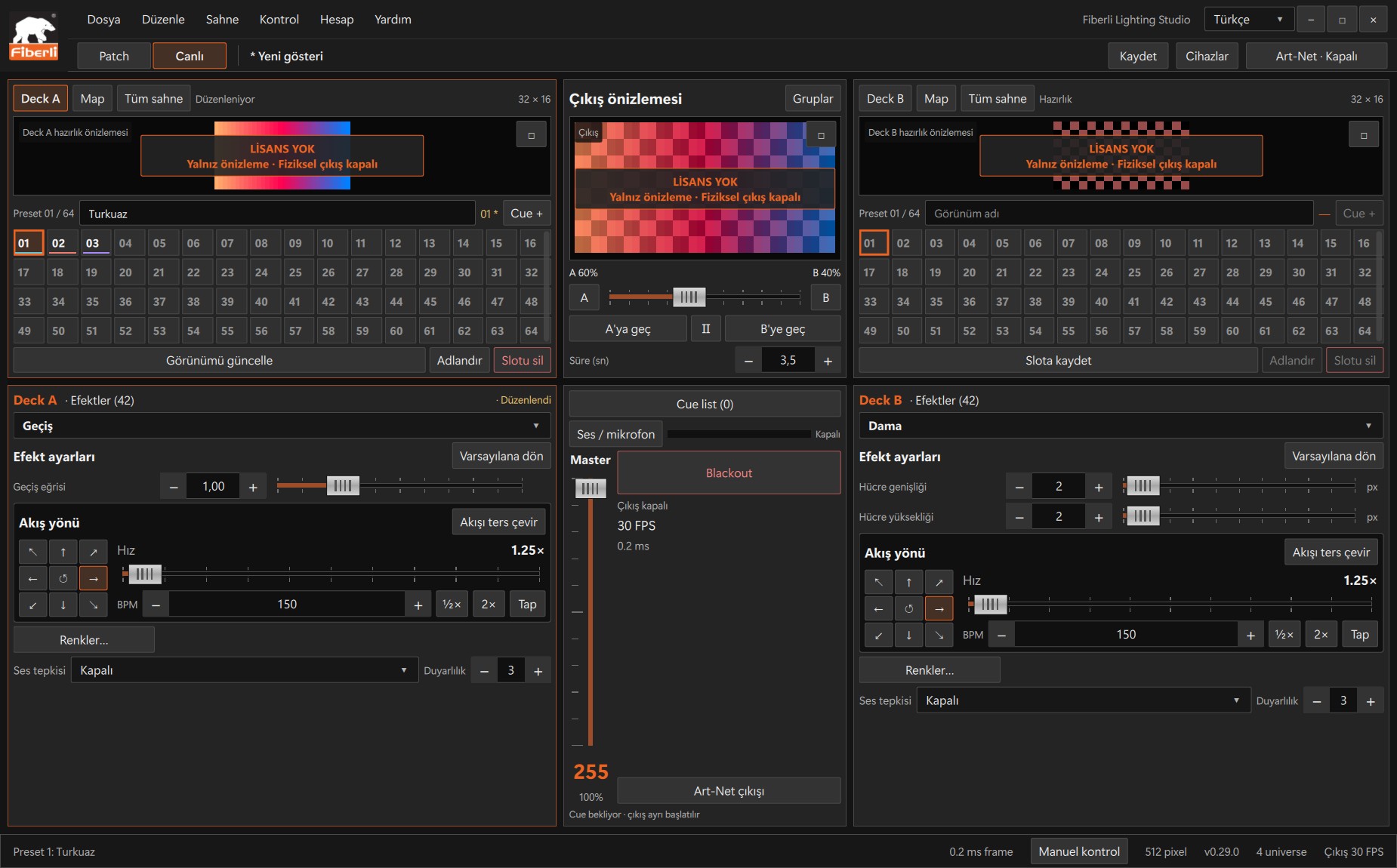
Live workspace: A/B decks, slots, output preview, Master and Blackout. Open the image to view it at full size. For an internet connection, generate a code using the phone pairing flow under Account > Customer account on the desktop. Enter it in the mobile app’s pairing field and select the computer.
For a local network connection, open Control > Phone control… on the desktop. Select the correct local network and press Enable remote control. Use the displayed address and session key in the mobile app’s local network connection settings.
Try selecting A/B animations and slots, changing speed and pausing/resuming on the phone. Watch the result in the desktop preview.
After uploading an image, video or .psl file, check it on the desktop. An uploaded project is a separate incoming file and must be opened explicitly on the desktop. Manage physical output from the desktop.
Expected result
The phone operates the show controls on the connected desktop.
Common mistakes and things to check
The mobile demo is not a connection and sends no commands. If the phone disconnects, the desktop show continues. Do not share pairing codes or session keys.
These are screenshots of the actual application. Images are from Windows Studio 0.29.0; the Help screen is from 0.30.1. The screenshots show the Turkish interface. Physical output is disabled in the examples.