
Automatic startup
Load the saved project when the Windows user signs in.
Prerequisite: A project saved in a permanent location, accessible media and completed installation settings.
Step-by-step instructions
Open the project you want to use at startup. Check its node and media settings, then press Save.
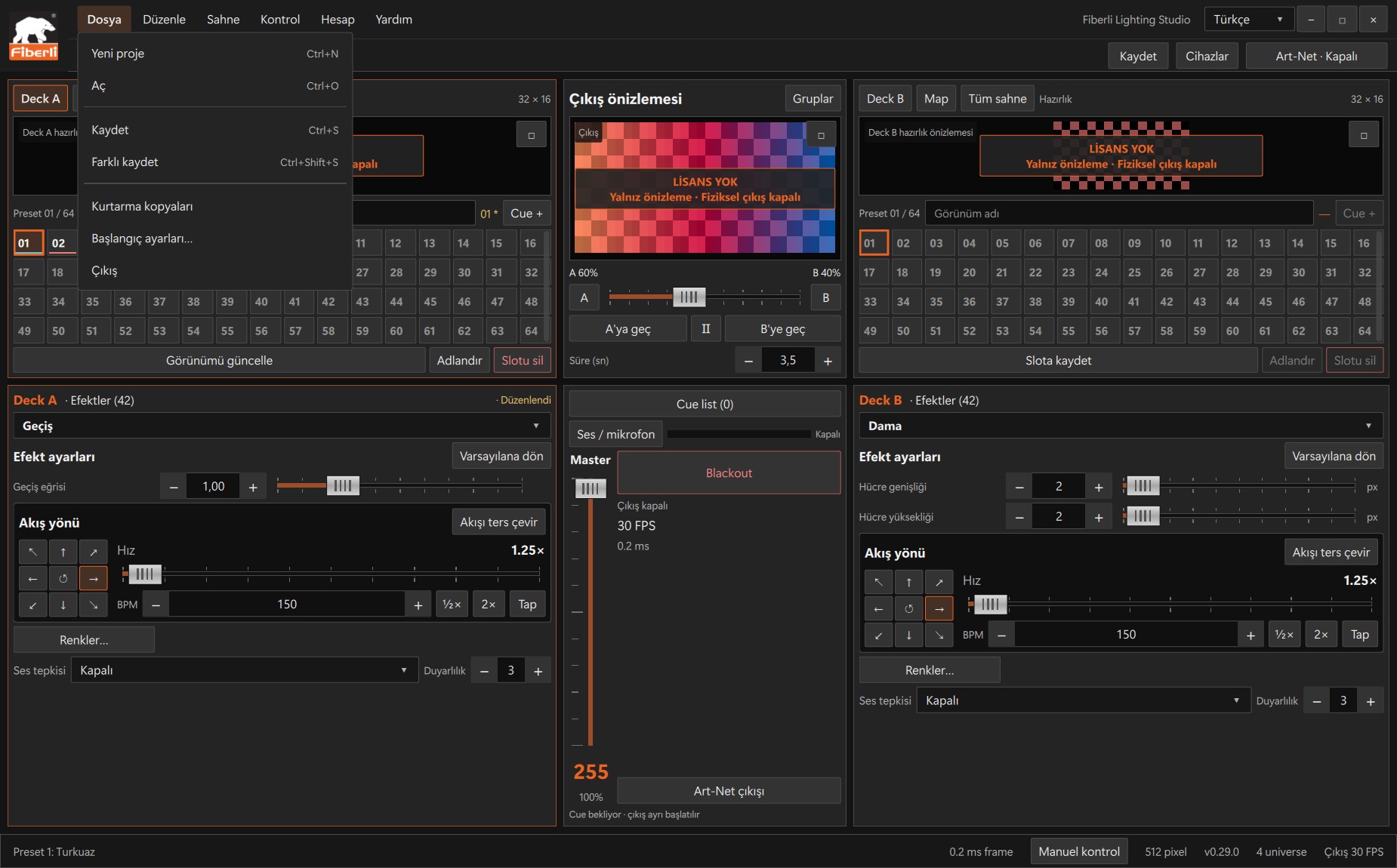
File menu: New, Open, Save, Save As and startup settings. Open the image to view it at full size. Open File > Startup settings…. Check the Start with Windows preference.
Use the current saved project or select another .psl file as the startup project.
In Studio 0.25.1 and later, playback and physical output can start automatically after the startup project loads successfully. Verify the destinations, licence and network access before commissioning.
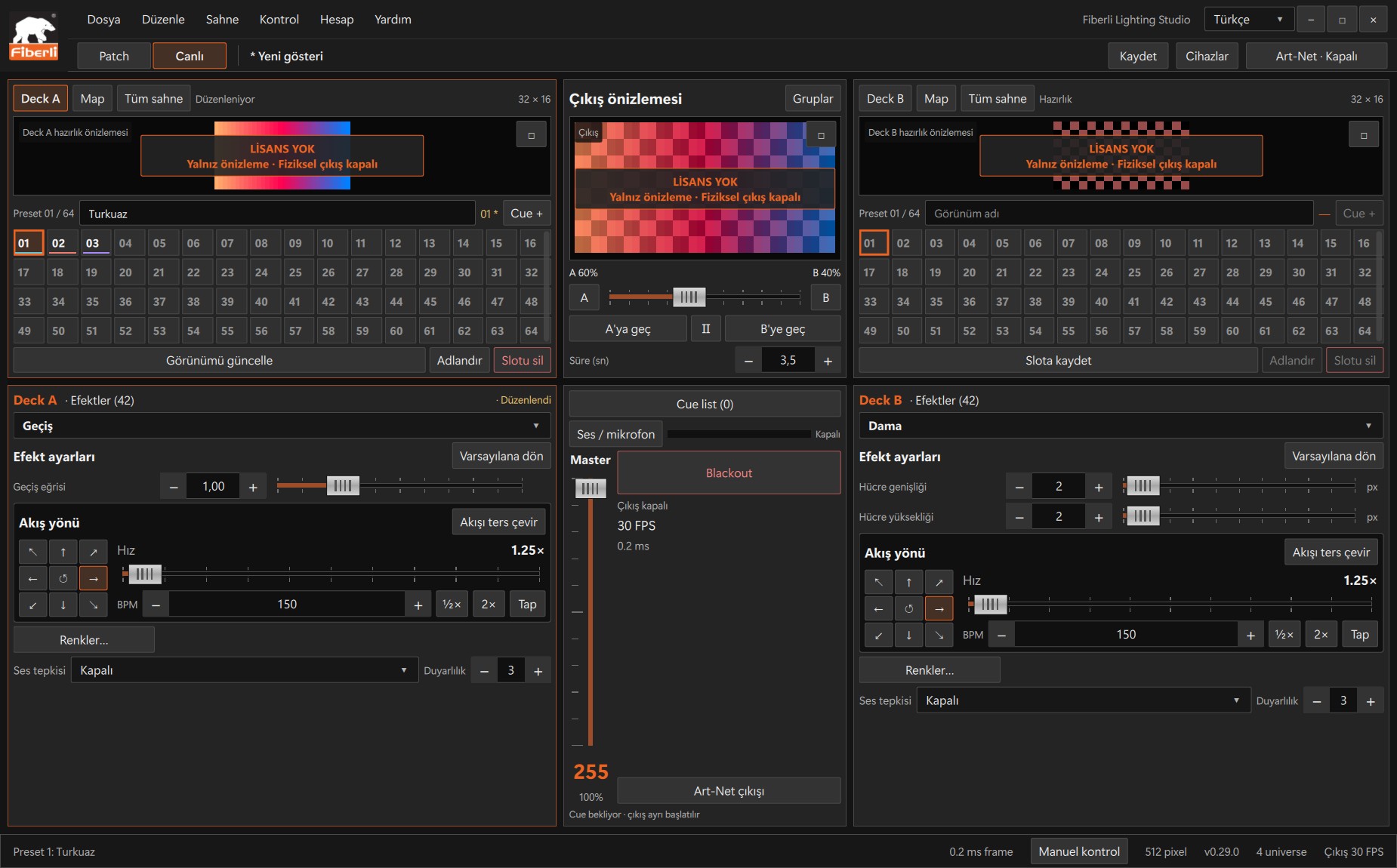
Live workspace: A/B decks, slots, output preview, Master and Blackout. Open the image to view it at full size. Perform a controlled Windows sign-in test. Check that the correct project loads and that the physical LEDs behave as intended. Use the same setting to disable the preference.
Expected result
The saved startup project loads in this Windows user’s session.
Common mistakes and things to check
This setting does not configure BIOS power-on, automatic Windows sign-in or hardware power recovery after an outage. Missing media and network errors affect automatic operation.
These are screenshots of the actual application. Images are from Windows Studio 0.29.0; the Help screen is from 0.30.1. The screenshots show the Turkish interface. Physical output is disabled in the examples.