
Troubleshooting
Work through missing output, incorrect colours or missing pixels step by step.
Prerequisite: Your project, node details and access to the physical system.
Step-by-step instructions
Start by checking the Live output preview. If it is incorrect, check the selected slot, crossfader, Master and Blackout states.
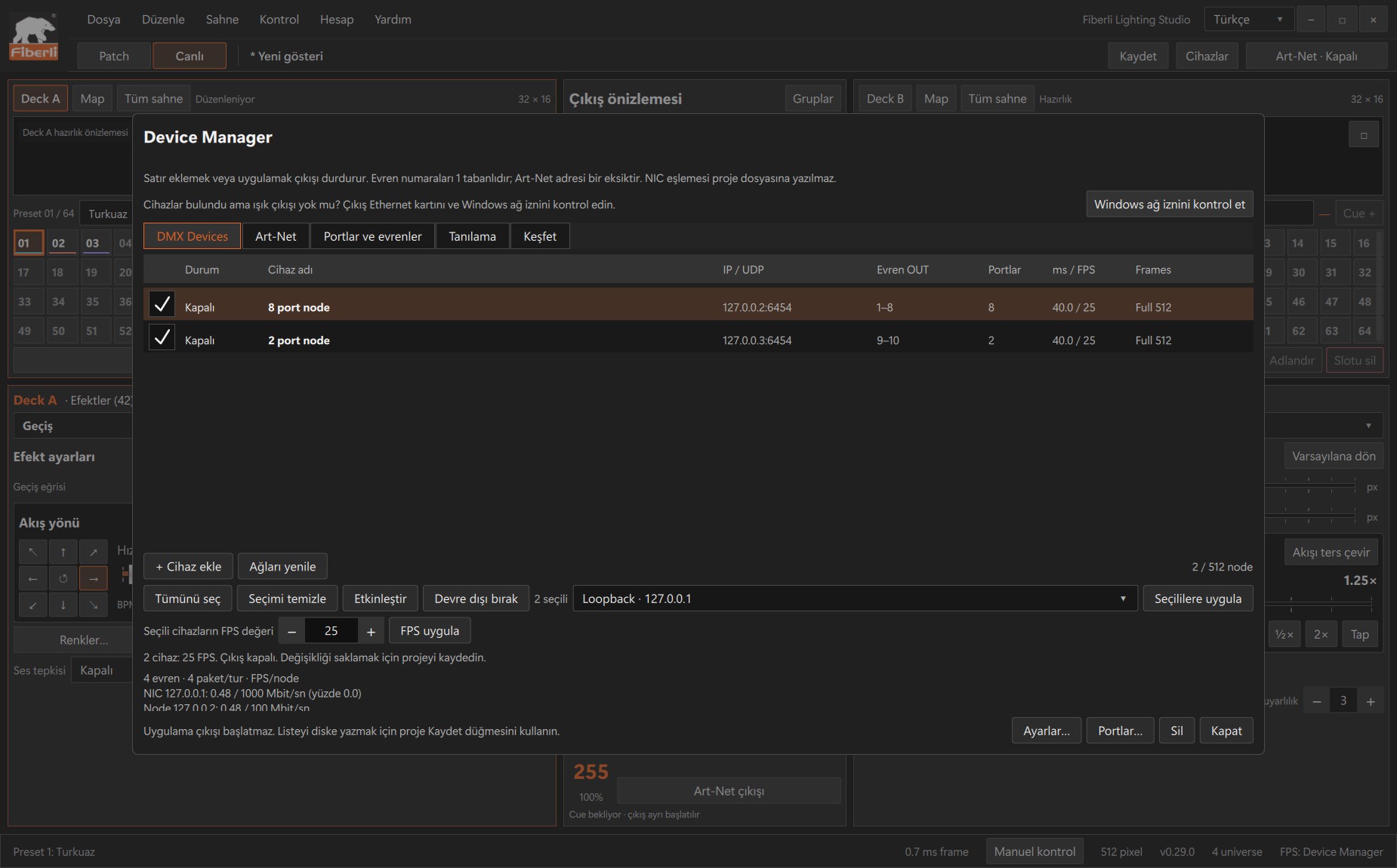
Device Manager: device rows, IP/universe details and bulk NIC/FPS controls. Open the image to view it at full size. If the preview is correct but the LEDs are dark, check that physical output is enabled, the licence is valid and the device rows are enabled.
Check the source Ethernet adapter, the computer/node IPv4 subnet, cabling and switch link. Follow the Windows network permission guidance in Devices.
If the first pixel works but later pixels are missing, compare the node port count, project/output universes, starting channel and pixel count. For incorrect colours, check the RGB order; for reversed movement, check serpentine wiring and the starting direction.
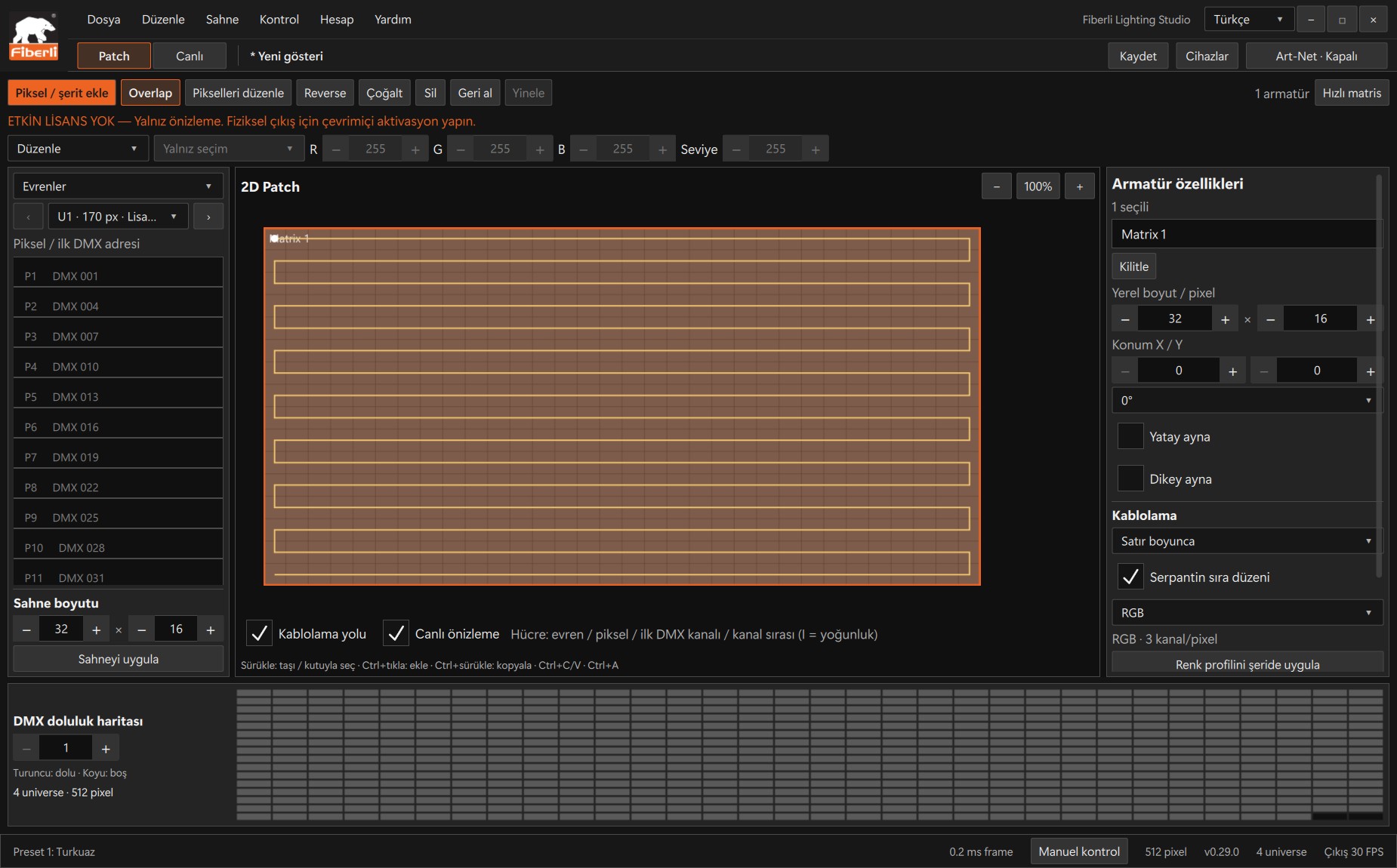
Patch workspace: fixture properties, pixel layout and DMX channel occupancy. Open the image to view it at full size. If the problem continues, use Help > Save diagnostics file to collect diagnostics. Request support through the Contact page, including your version, the expected behaviour and the checks you have made.
Expected result
You can narrow the problem down to content, addressing, the network or physical hardware.
Common mistakes and things to check
Avoid changing several settings at once. Make one change and check the result. Discovery and UDP counters do not confirm physical delivery.
These are screenshots of the actual application. Images are from Windows Studio 0.29.0; the Help screen is from 0.30.1. The screenshots show the Turkish interface. Physical output is disabled in the examples.