
Preparing text and scrolling text
Create legible moving text on the pixel scene.
Prerequisite: A pixel layout with enough height for the text.
Ready-to-use example projects
Download the file. In Studio, use File → Open to open it. If you download the ZIP, extract it to a folder first. Requires Windows Studio 0.29.0 or later. No external media files are needed.
- Scrolling text — download .psl
64 × 16 RGB. Slots with orange FIBERLI and white MERHABA text; try adjusting the speed and direction.
The example nodes are disabled and use loopback addresses. In the scheduling example, the master switch and all rules are disabled. Use Save As to keep your own experiments.
Step-by-step instructions
In Live, select the scrolling text effect from the relevant deck’s effect list.
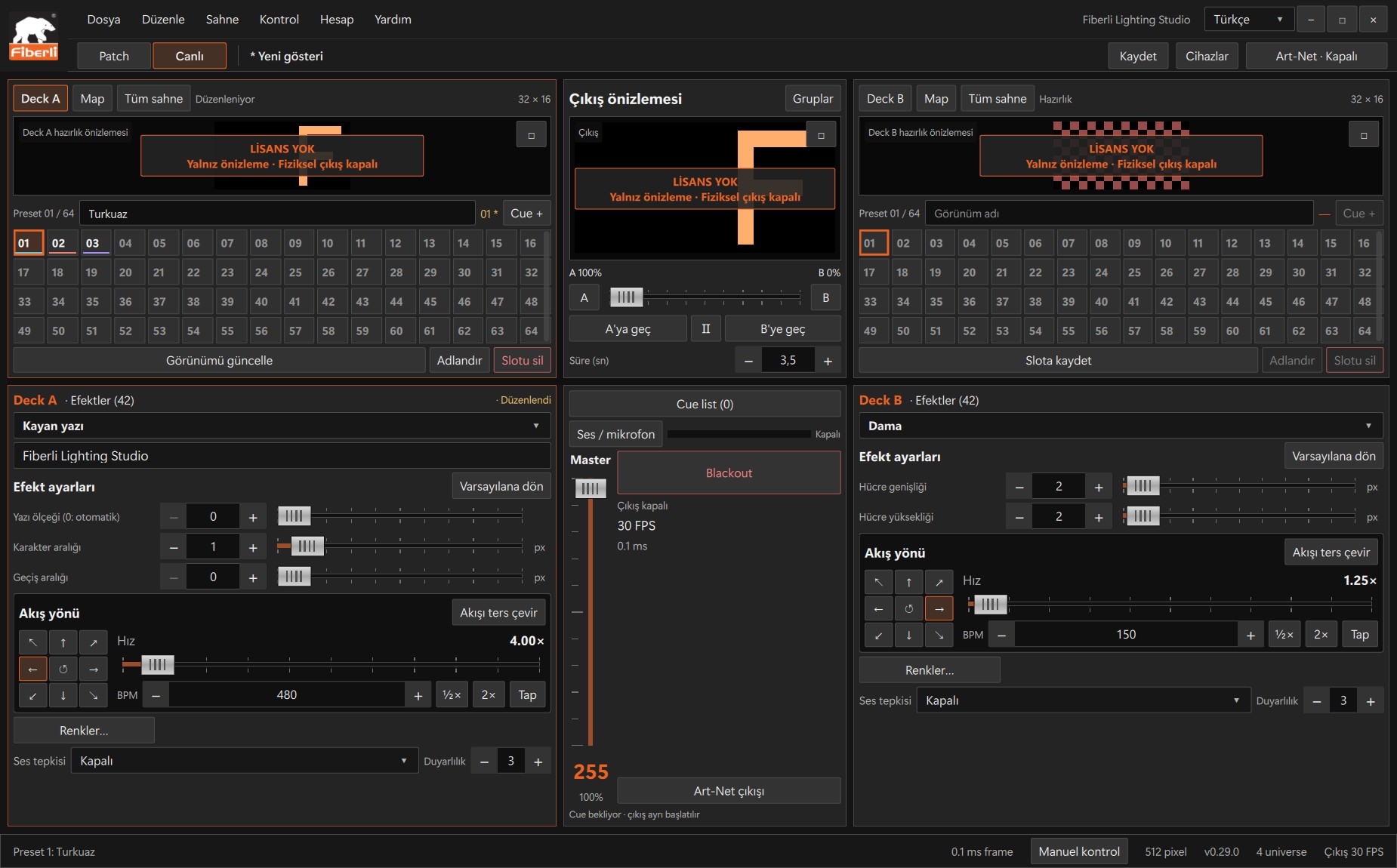
Deck with scrolling text selected: text and flow settings. Open the image to view it at full size. Enter a short test message, such as FIBERLI, in the text field. Check readability with a few words first.
Use Colors… to adjust the text colour and the available text settings for the effect.
Set the flow direction and speed. Compare the movement in the preview with the orientation of the physical strip or matrix.
Preview the text moving all the way through the scene. Save it to a slot, then save the project.
Expected result
The text moves through the scene in the selected direction and at the selected speed.
Common mistakes and things to check
Too few pixels in height or an excessive speed can make text unreadable. Enlarging the preview does not increase the physical pixel count.
These are screenshots of the actual application. Images are from Windows Studio 0.29.0; the Help screen is from 0.30.1. The screenshots show the Turkish interface. Physical output is disabled in the examples.