
Using images and video
Apply a local media file to the LED layout.
Prerequisite: An image or video file accessible on the computer.
Step-by-step instructions
In Live, select the deck you want to use. Choose Image or Video at the end of the effect list.
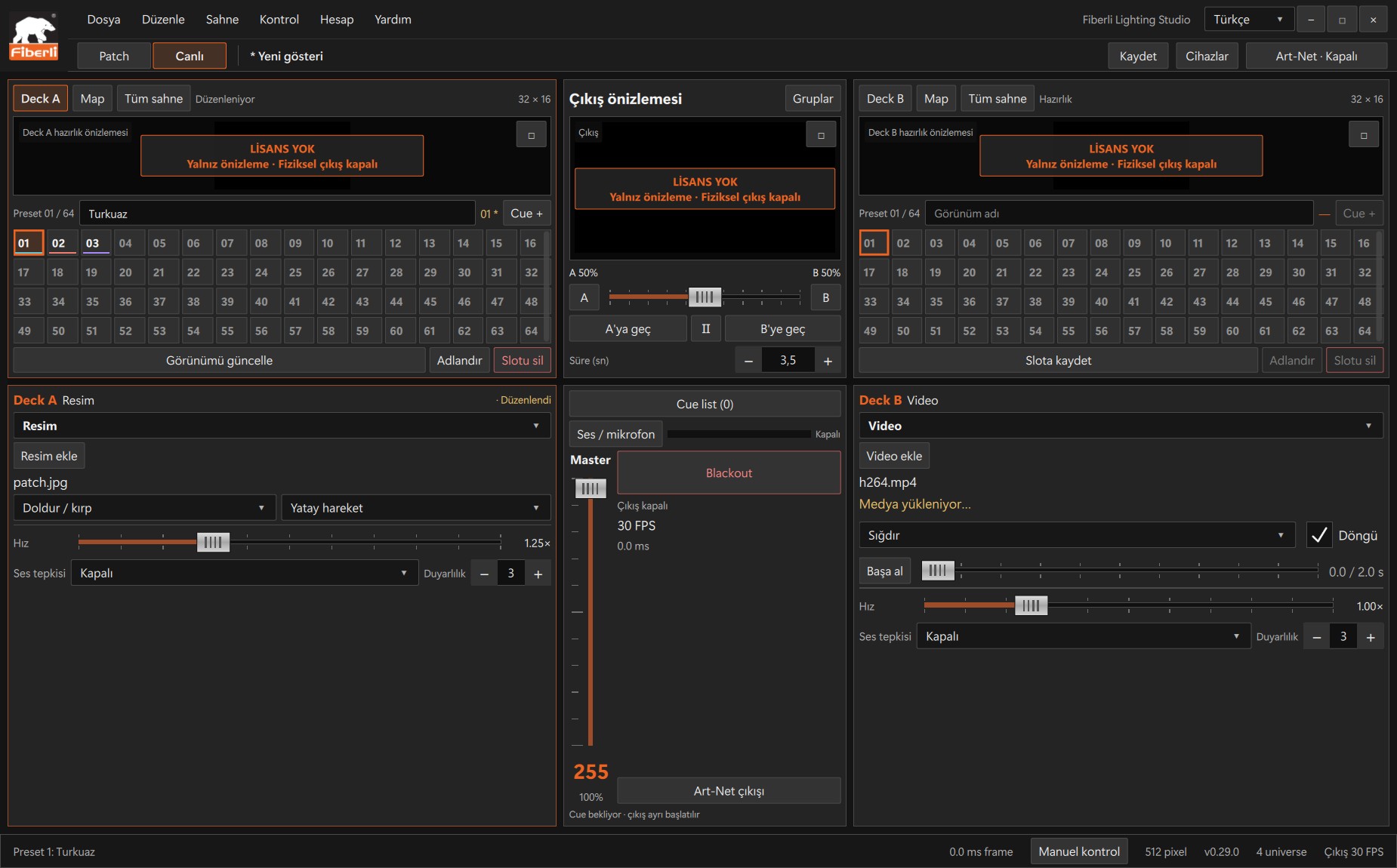
Example A/B decks using image and video sources. Open the image to view it at full size. Open a local file using Add image or Add video and wait for it to finish loading.
Use Fit, Fill or Stretch to adapt the media to the scene. Check cropped areas in the preview.
For video, adjust playback, looping and position; for images, adjust the available movement settings.
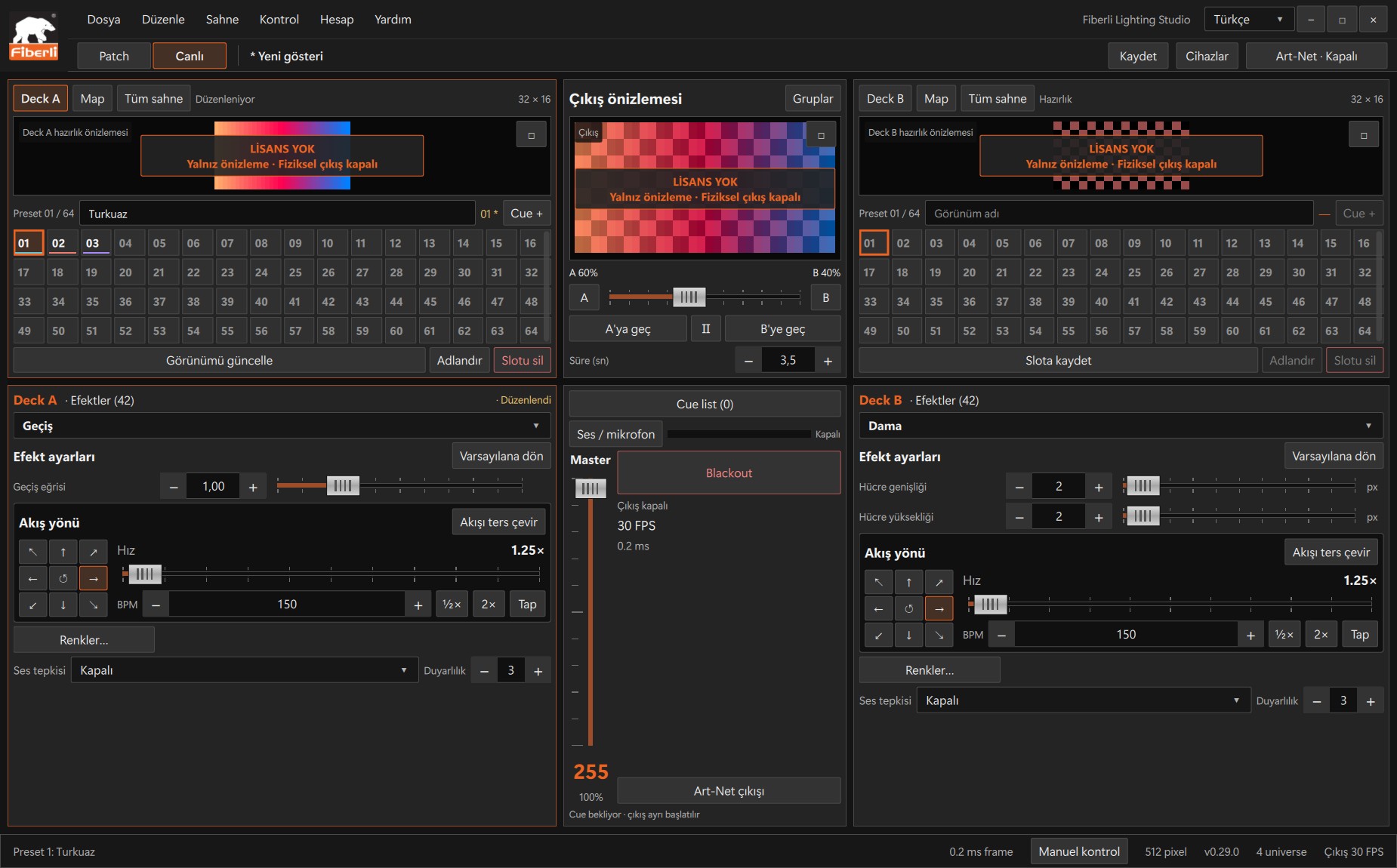
Live workspace: A/B decks, slots, output preview, Master and Blackout. Open the image to view it at full size. Save the look to a slot, then save the project. Include the source media files when transferring the project.
Expected result
The selected media appears in the relevant deck and output previews.
Common mistakes and things to check
The project file does not embed the media itself. Deleting or moving the source file can cause a warning and a black image; select the file again.
These are screenshots of the actual application. Images are from Windows Studio 0.29.0; the Help screen is from 0.30.1. The screenshots show the Turkish interface. Physical output is disabled in the examples.