
Installation and first launch
Install Studio and check the licence status.
Prerequisite: A Windows computer and an internet connection to download the installer.
Downloadable activation guide
Download the 6-page Turkish / English PDF guide with numbered fields and buttons on the licence screen.
Step-by-step instructions
On the Download page, enter your full name, email and phone number, complete the required consent and download FiberliLightingStudio-Setup.exe for Windows. Company is optional. License Manager is for authorised licence administrators.
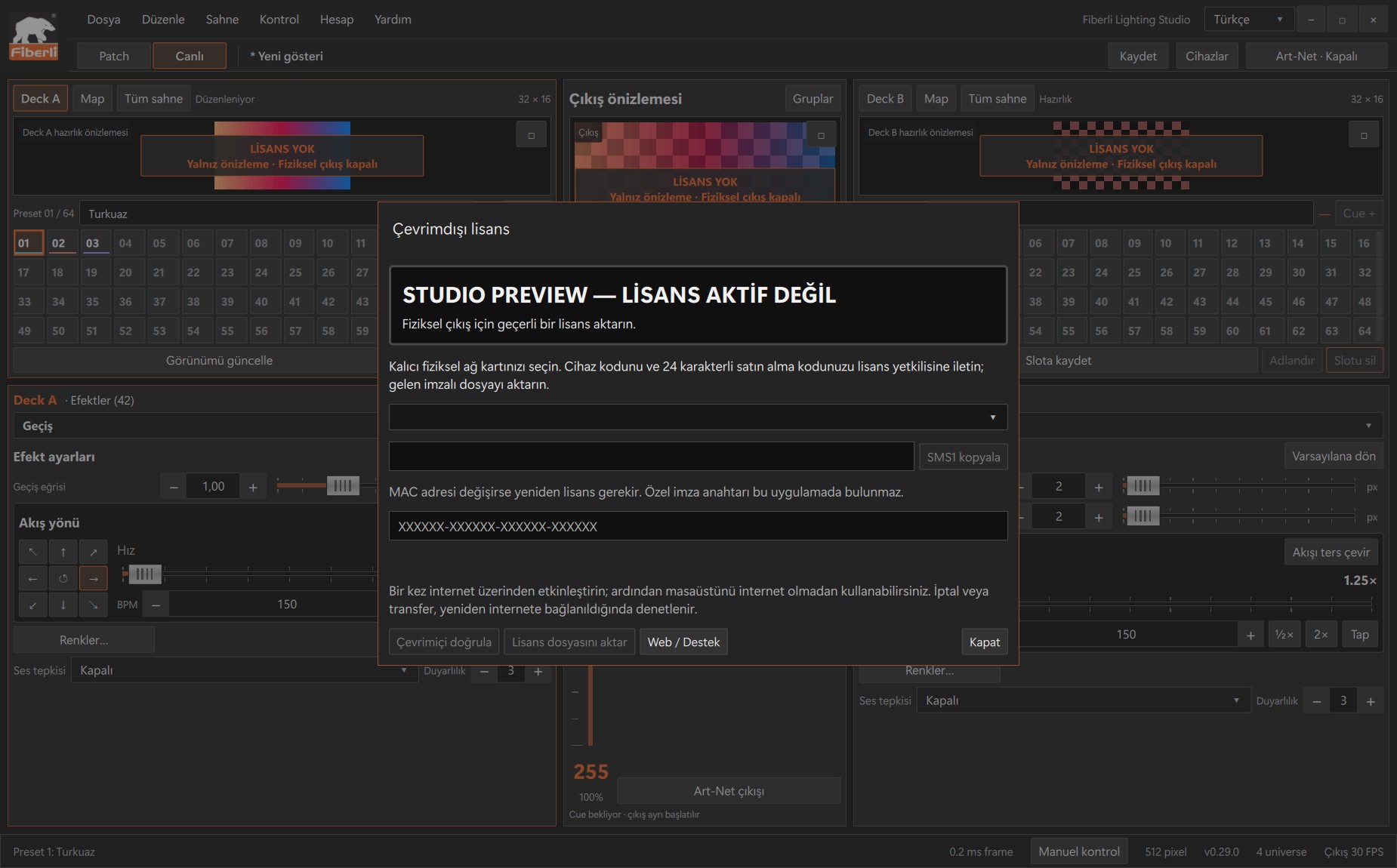
Licence window: Studio Preview status and activation fields. Open the image to view it at full size. Save your project in any open Studio window and close the application. Run the installer and complete the installation steps.
Open Studio and select Turkish from the language list at the top right to match the screenshots in this guide.
Open Account > Licence. Studio Preview lets you prepare your work without physical output. Physical output requires a valid licence for your computer.
Prepare internet and output. Connect the computer to the internet for initial activation. Stop physical Art-Net output in Studio if it is running; output must remain stopped while importing a licence.
Open the licence window. Open Account > License. Studio Preview does not provide physical output. Although the window is titled Offline license, initial activation requires internet access.
Choose a permanent network adapter. Select the permanent physical network adapter you will continue using on this computer. Its SMS1 device code appears. A change of MAC address requires a new licence.
Send the device code to your administrator. Click Copy SMS1 and send the entire code to your licence administrator. Include your 24-character purchase code if one has already been provided. You can use the website Contact page to get in touch; complete licensing with your administrator.
Receive the licence file. Obtain the .smslicense file issued for this device code and its matching purchase code from your administrator. Save the file in a folder you can find. Extract it first if supplied in a ZIP archive; do not edit its contents.
Enter the purchase code. In Account > License, enter the 24-character purchase code in the XXXXXX-XXXXXX-XXXXXX-XXXXXX field. The code must match the supplied .smslicense file.
Choose and import the file. Click Import license file. In the file picker, select the .smslicense file and open it. Selecting the file starts the import; there is no separate Activate button.
Wait for online activation. Studio verifies the licence signature, device match and purchase code, then starts online activation automatically. Keep the internet connection available. If the file was imported but activation is incomplete, check the connection and click Verify online.
Check the successful result. Check LICENSE ACTIVE, the customer name, package name and universe capacity. Confirm the status message indicates that activation is complete and offline use is available; this message may appear in Turkish. This does not start physical output automatically; check your network and project settings separately.
Expected result
Studio opens and shows the language and licence status.
Common mistakes and things to check
If the purchase code does not match, check that it belongs to the same licence file. For a device mismatch, send the SMS1 code from the correct computer and network adapter to your administrator. If Import is disabled, check the 24-character code and stop physical output. If Studio asks for the licence to be registered in the admin portal, contact your licence administrator. After successful initial activation, the desktop can be used offline; revocation or transfer is checked on reconnection.
These are screenshots of the actual application. Images are from Windows Studio 0.29.0; the Help screen is from 0.30.1. The screenshots show the Turkish interface. Physical output is disabled in the examples.