
Scheduling and calendar rules
Start a show on a specific date and at a specific time.
Prerequisite: A saved timeline and the correct Windows local time and time zone.
Ready-to-use example projects
Download the file. In Studio, use File → Open to open it. If you download the ZIP, extract it to a folder first. Requires Windows Studio 0.29.0 or later. No external media files are needed.
- Daily schedule — download .psl
Rules for starting at 18:00 and stopping at 23:00. The master scheduling switch and all rules are disabled.
The example nodes are disabled and use loopback addresses. In the scheduling example, the master switch and all rules are disabled. Use Save As to keep your own experiments.
Step-by-step instructions
Open Control > Scheduling…. Create a new rule and give it a name, such as Evening show.
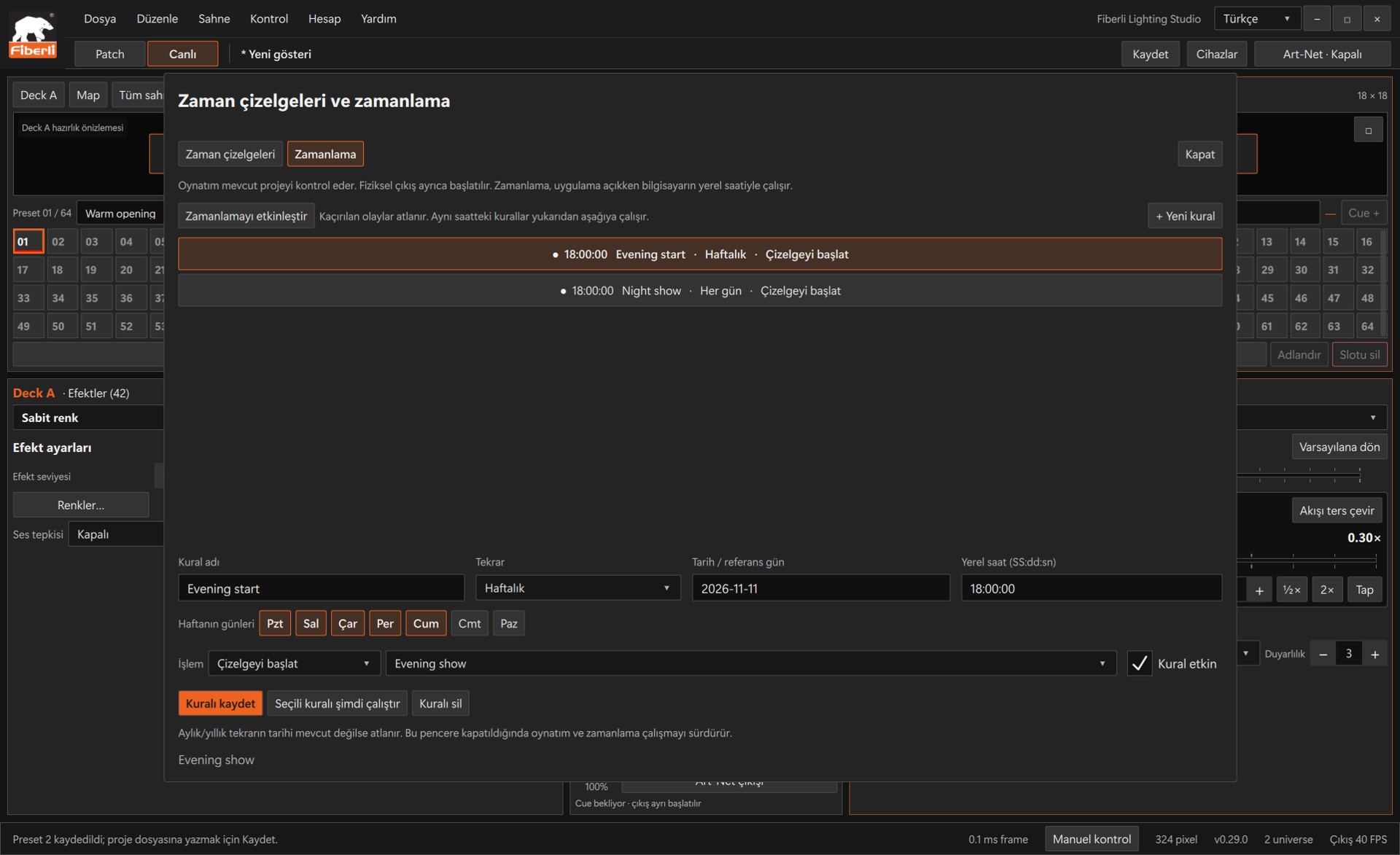
Scheduling: repeat type, date/time, action, rule and master enable control. Open the image to view it at full size. Choose the repeat type: Once, Daily, Weekly, Monthly or Yearly. Set the date and time; for weekly schedules, select the days.
Choose Start timeline as the action, select your prepared timeline and save the rule. Other actions control cues, stopping, Blackout and Master.
First test the preview using Run now with output disabled. This button applies the selected action immediately, even if the rule is disabled.
Enable the rule and turn on the Enable scheduling master switch. Save the project and leave Studio open. Prepare physical output separately for the actual installation.
Expected result
The rule runs at the next matching scheduled time while Studio is open.
Common mistakes and things to check
Tasks do not run while Studio is closed or the computer is asleep. Missed events are not replayed together at startup. Starting a timeline does not enable physical output or clear Blackout.
These are screenshots of the actual application. Images are from Windows Studio 0.29.0; the Help screen is from 0.30.1. The screenshots show the Turkish interface. Physical output is disabled in the examples.